
eSchool contains mail links for guardians that you can use to compose in Gmail.
There are a couple of settings on your computer that need to be in place first for this to work:
Step 1) You need to set the default email program on your computer to Chrome. Please see this article for guidance:
Set Google Chrome as Default Email App
Step 2) After changing the default as described above, go to mail.google.com and look for a double-diamond symbol at the right side of the address bar. Click on it and choose "Allow". This will enable gmail to open any mailto links you click.
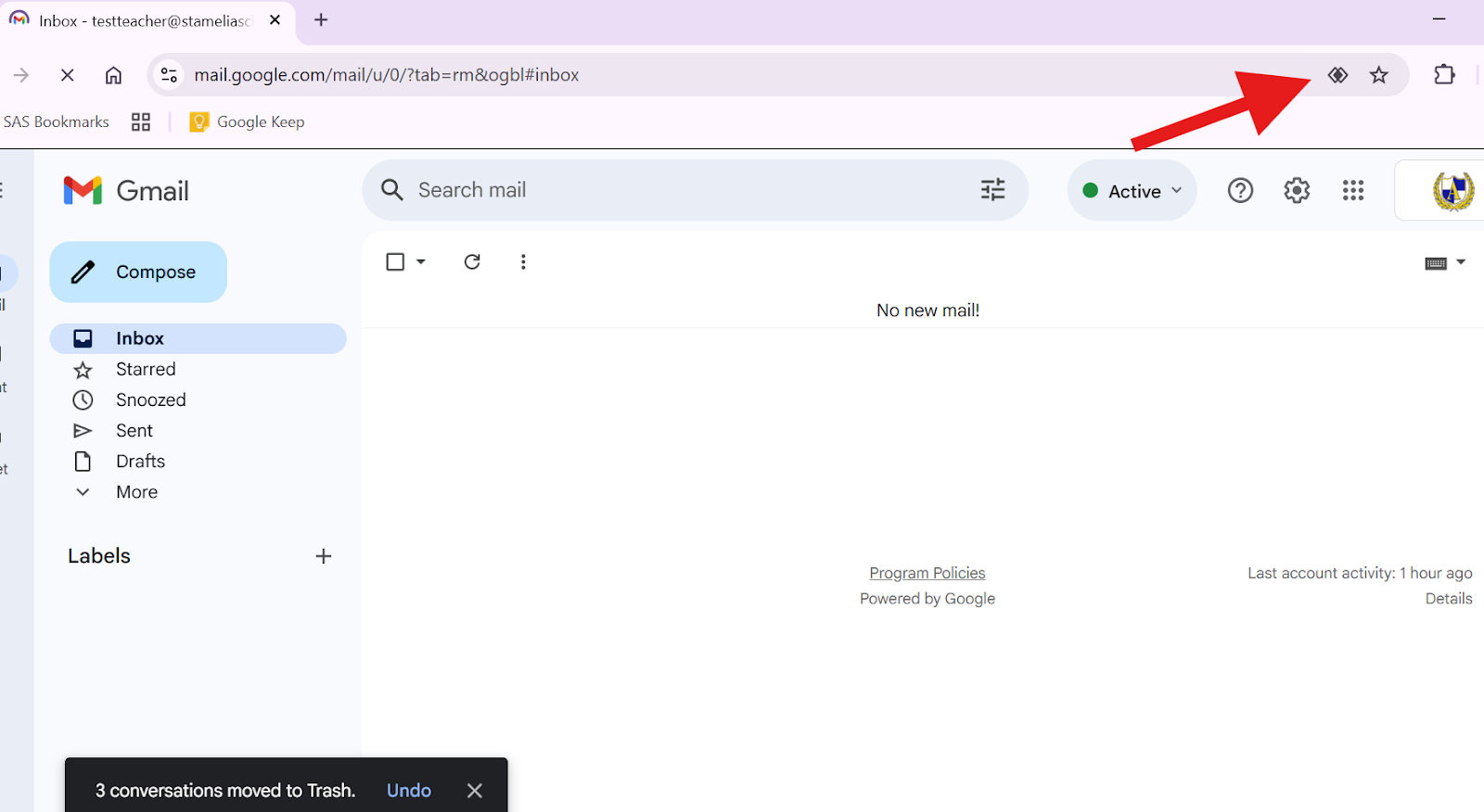
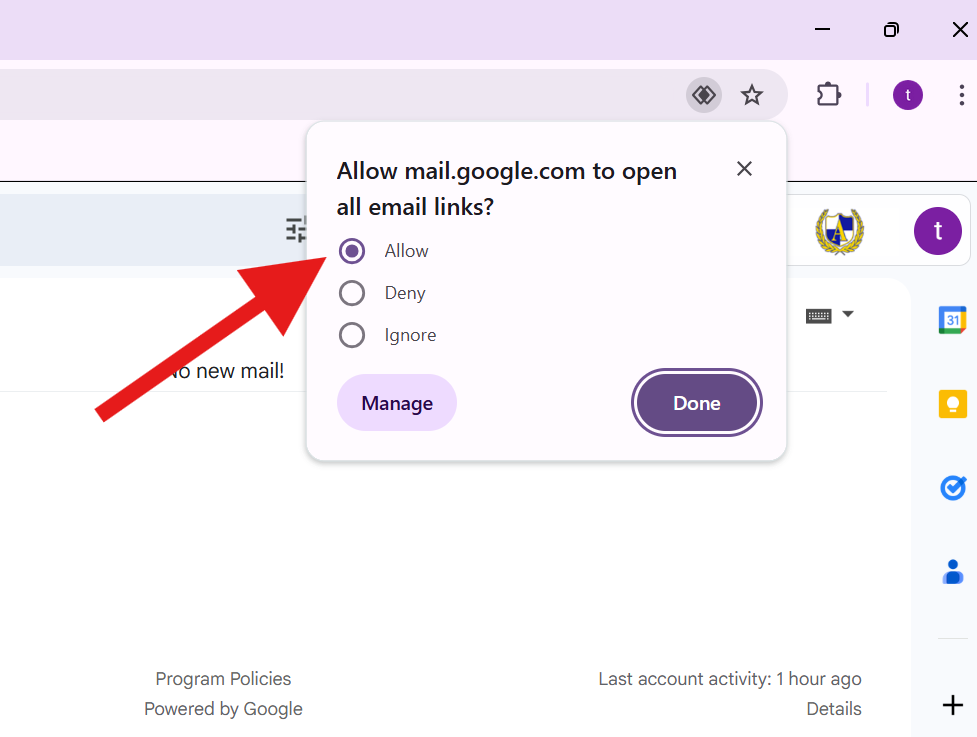
After you have completed these 2 steps, you are ready to use the email feature in eSchool. (You should only need to go through the setup described above once for each computer you intend to use to send email from eSchool.)
Go to your Class Roster
Click the "Reports" button on the toolbar and choose "Student Contacts"
Click the "Email" button on the toolbar and choose "Parents"
This should open a new tab to compose your message (through gmail) with all of the parent email addresses already added to the recipients. It also puts them in as bcc so they cannot see each other's addresses when they receive the email. You can also use the checkboxes next to the names in the list to select a specific subgroup.
Troubleshooting
If the double-diamond symbol does not appear when completing Step 2 described above, you may need to reset the email handler in the Google Chrome settings:
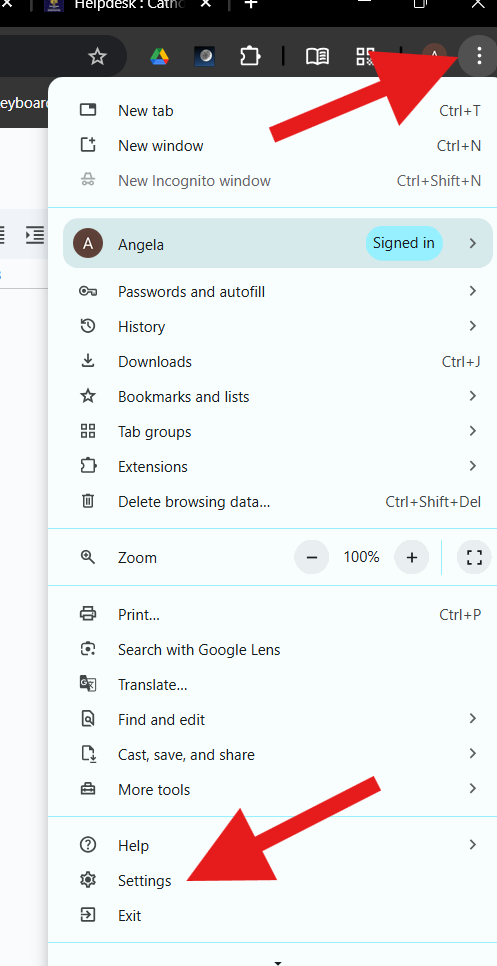
Click the 3-dot menu in the upper right corner of Google Chrome. Choose “Settings” from the menu.
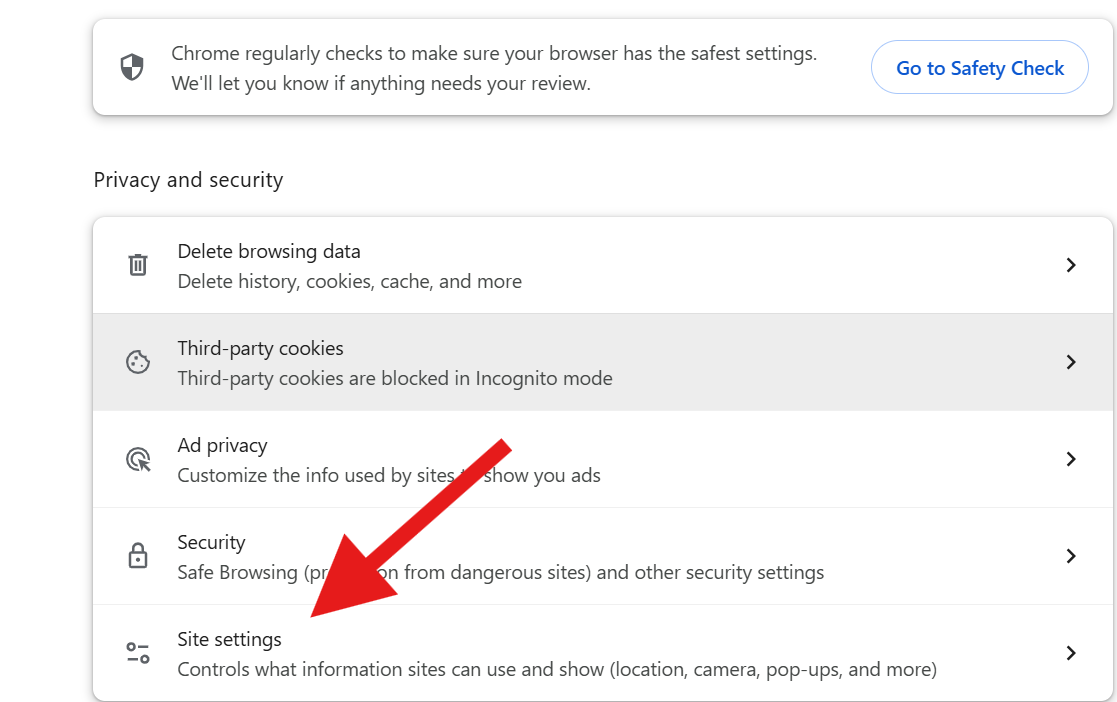
Choose “Privacy and Security” from left sidebar.
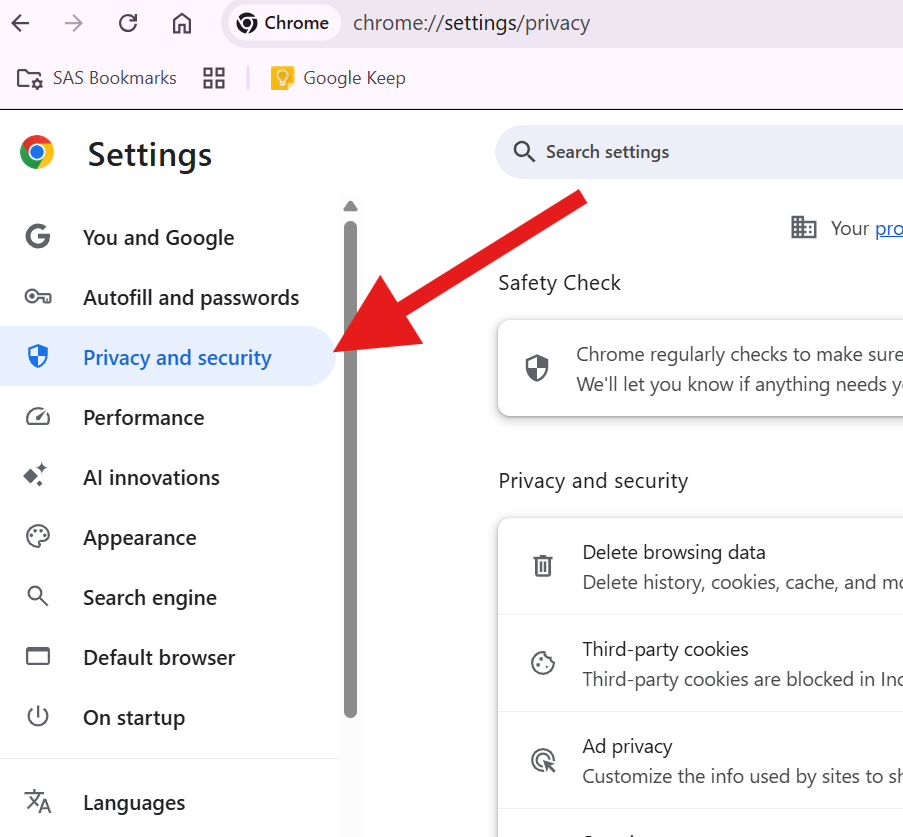
Under Privacy and Security, click on “Site settings”
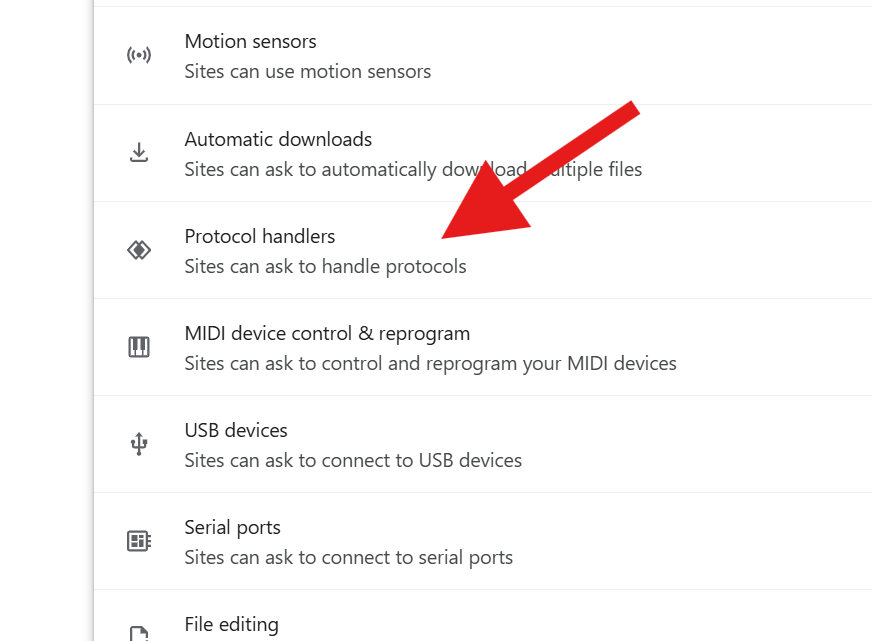
Scroll down through the list and click on “Protocol handlers”
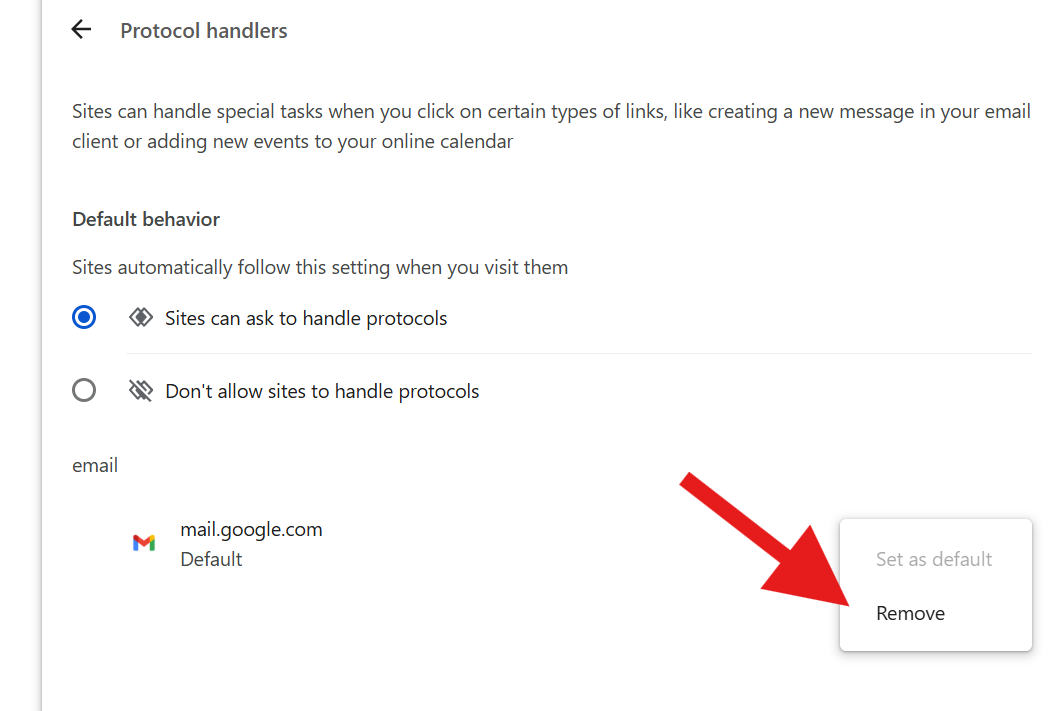
Find mail.google.com in the list, click the 3-dot menu, and choose remove.
In a new Chrome tab, navigate to mail.google.com. You should now see the double diamond icon described in Step 2.