
Morning Announcements Setup
This year we will be trying something new for our morning news. On certain days, there will be a Morning News video that can be shown on the interactive boards in the classrooms. In order for that to play, we need teachers to do some initial setup on the laptop that will be attached to the board.
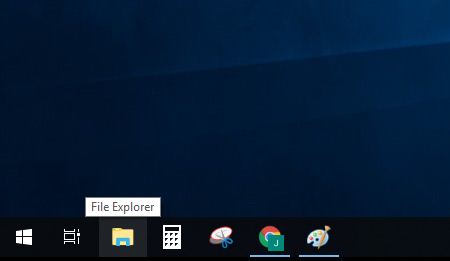
Step 1: Open the file explorer by clicking on the Folder Icon on your taskbar at the bottom of your screen.
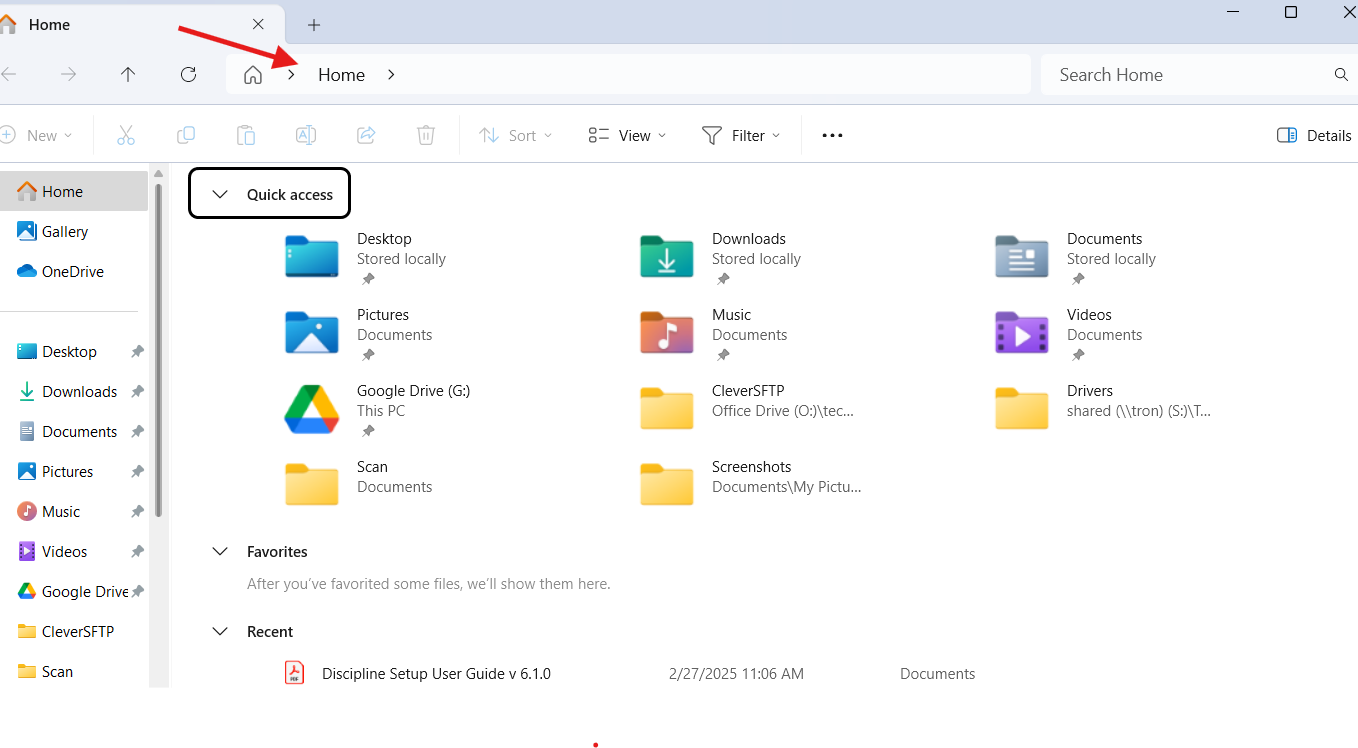
Step 2: In the address bar where it says “Home” type: \\tron\shared and press Enter
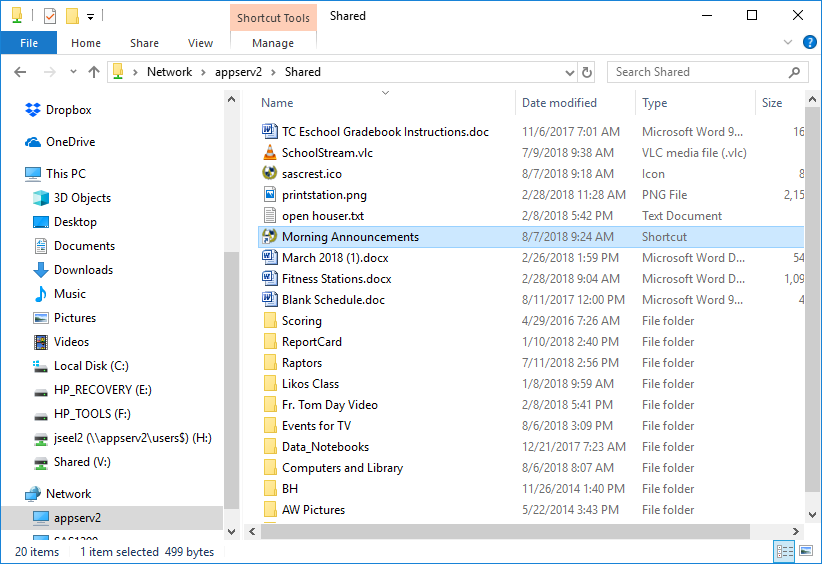
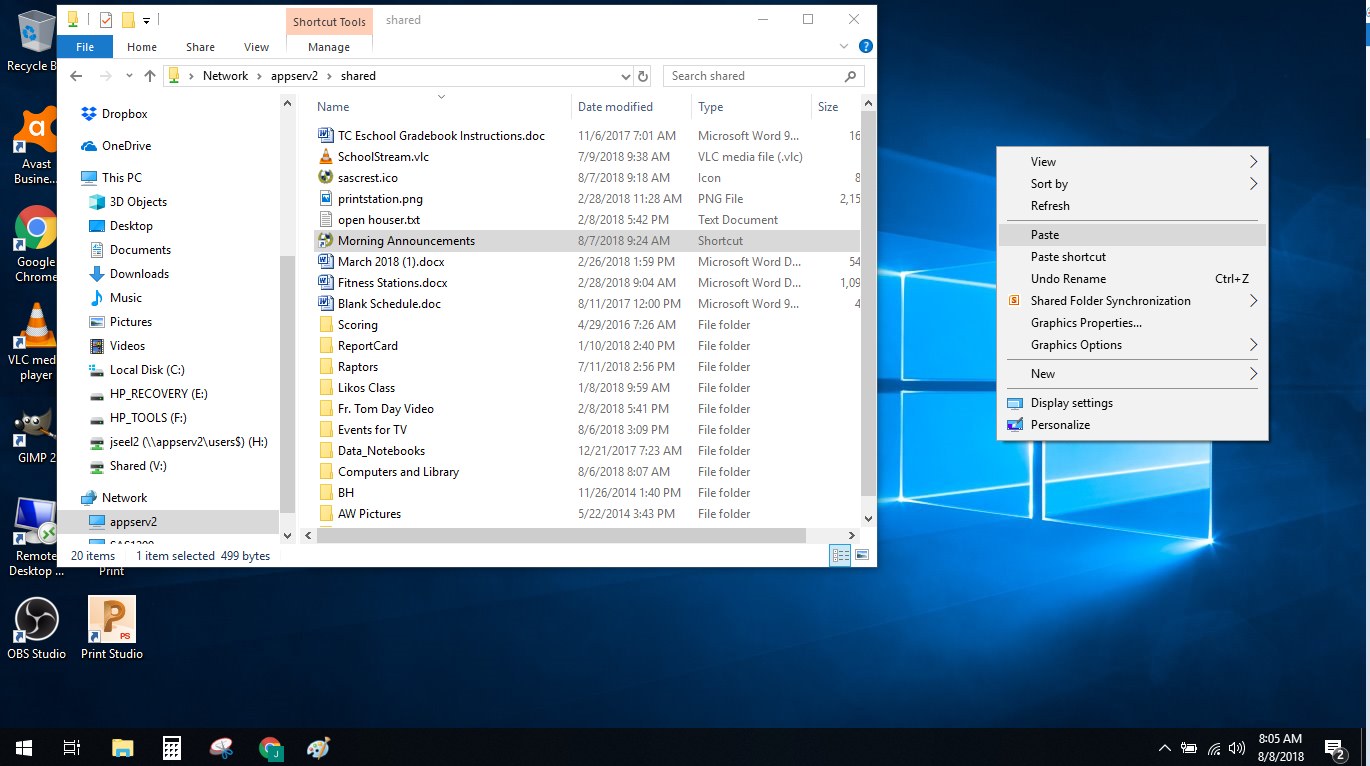
Step 3: In that folder is a file called Morning Announcements
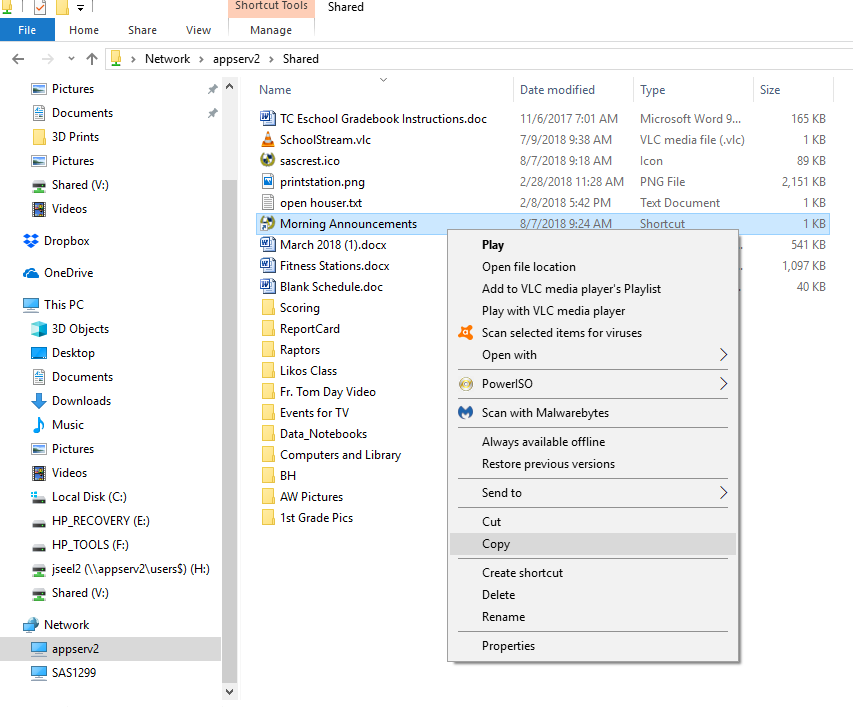
Step 4: Right-click and select copy on that file
Step 5: Then right-click anywhere on the desktop outside that explorer window and select paste
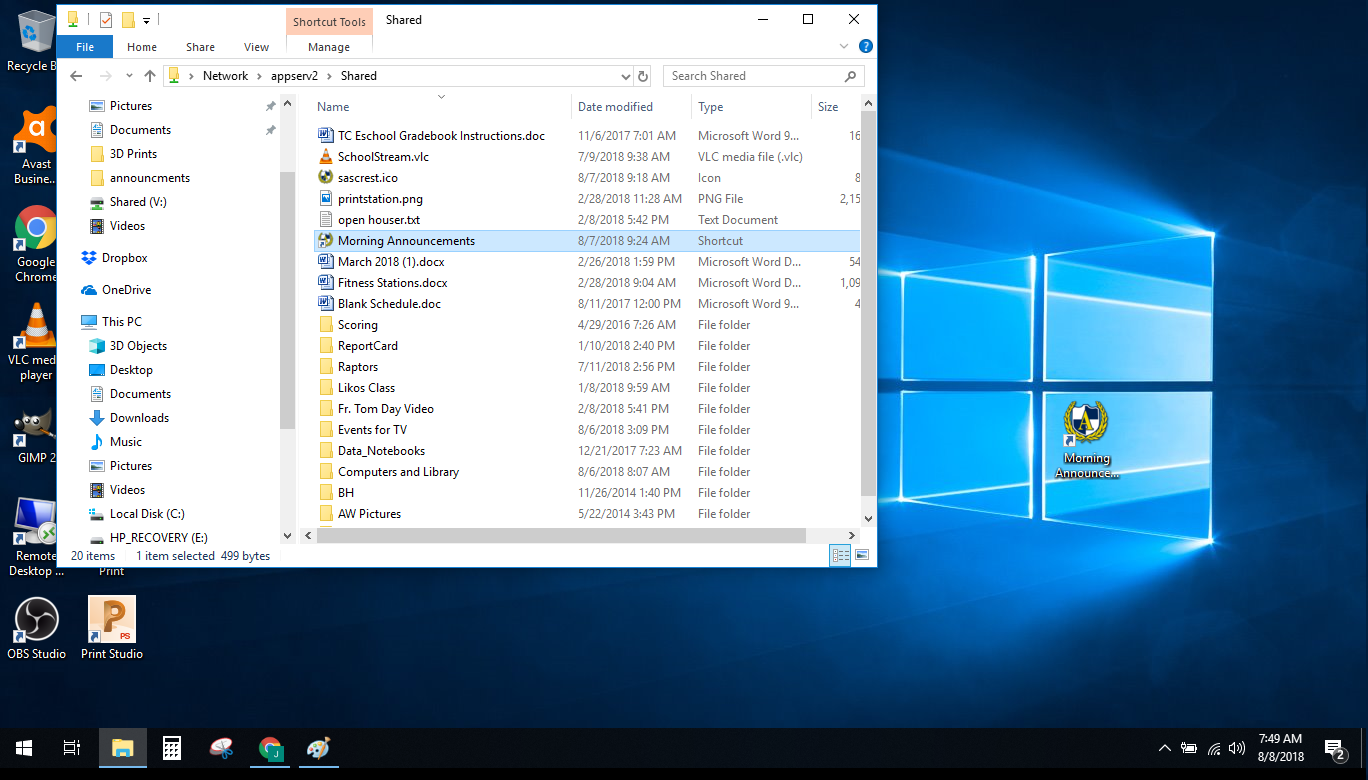
Step 6: You should now have a link on your desktop called Morning Announcements
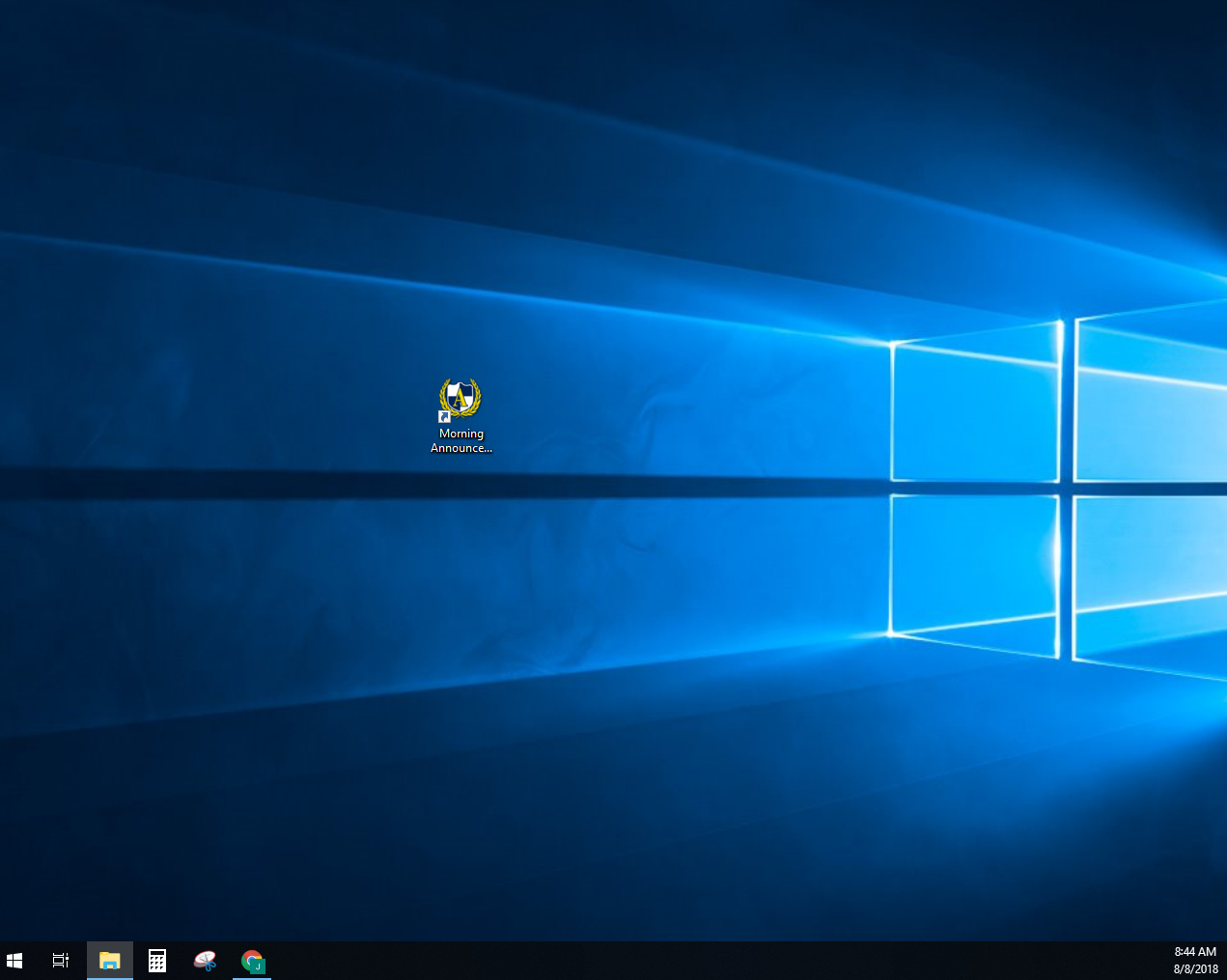
Starting up the morning announcements
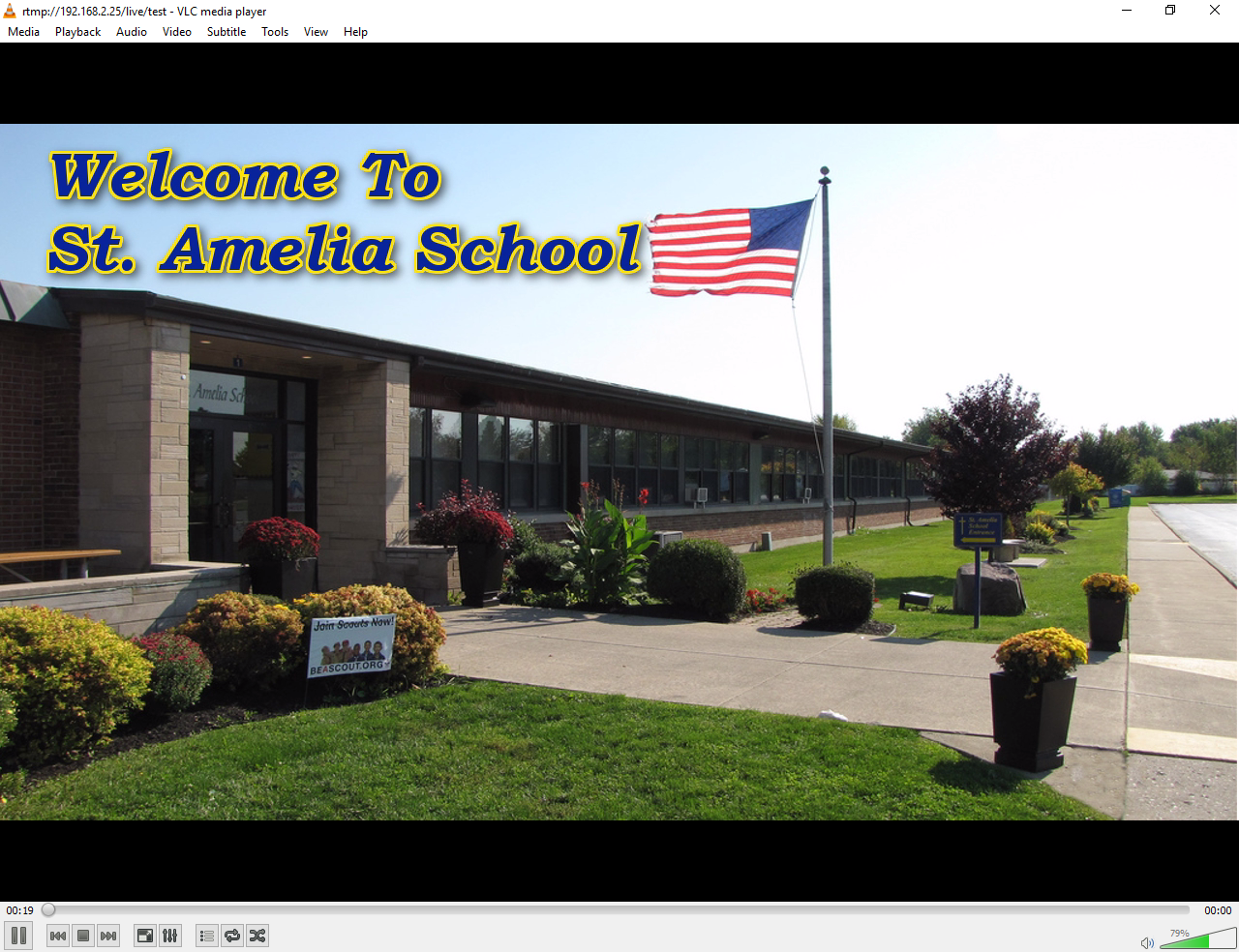
Once your Interactive board is on and ready, double-click the Morning Announcements icon on your desktop. This will open VLC to the announcement/Morning News video stream.
The first time you open VLC you will get an additional smaller window that opens with some text and a couple of checkboxes. Uncheck both boxes and then click Continue.
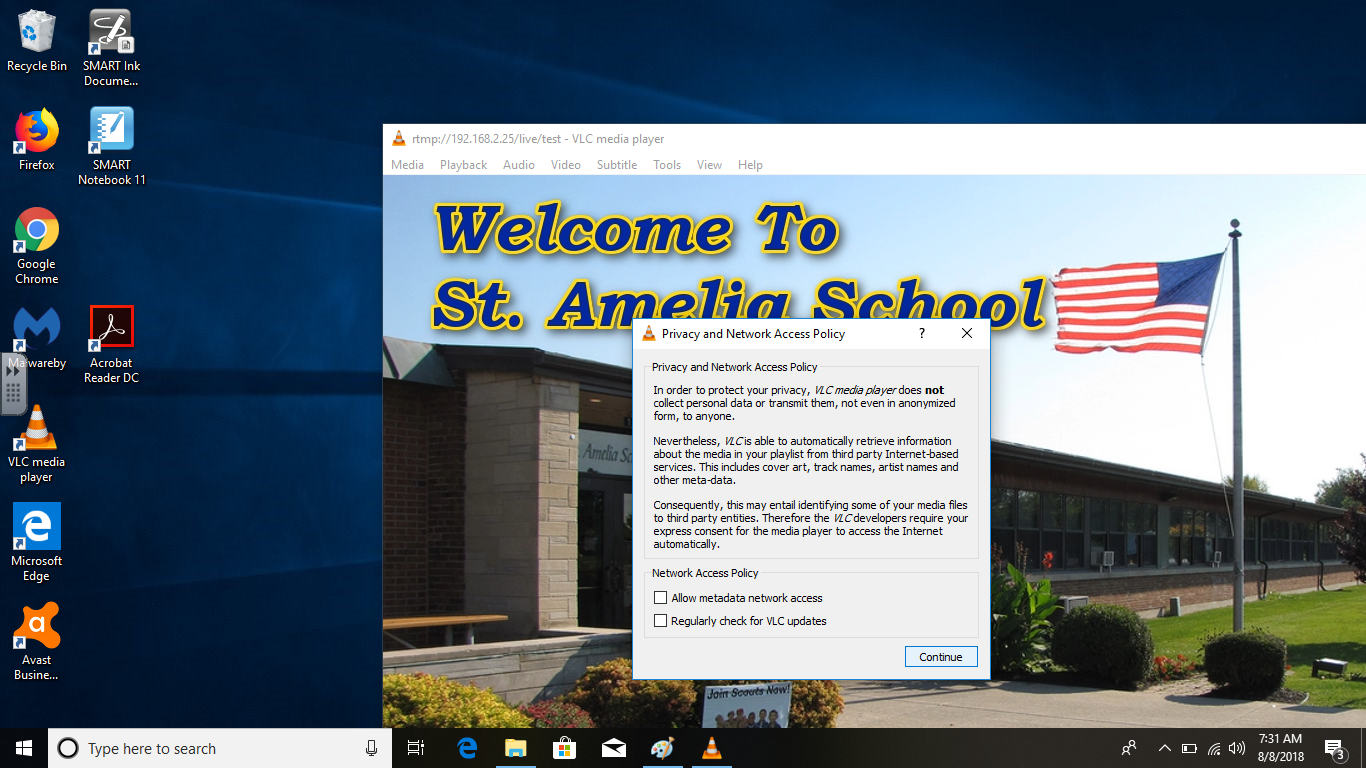
When VLC opens it will connect to the stream and start displaying the slideshow that shows on hallway TVs. You are now ready to watch the morning announcements!
Troubleshooting(Having problems connecting?):
There is a possibility that it won’t always connect to the stream on the first try. You will be able to tell if it doesn’t connect if the player stays on a black screen and the bar at the bottom of the window flashes yellow back and forth.
If you’ve waited 30 seconds to a minute and the stream hasn’t started, close VLC and double-click the morning announcements icon again. Continue this process until it connects.