
This tutorial will help you create a label for your email contacts that will allow you to email a group of people all at the sametime.
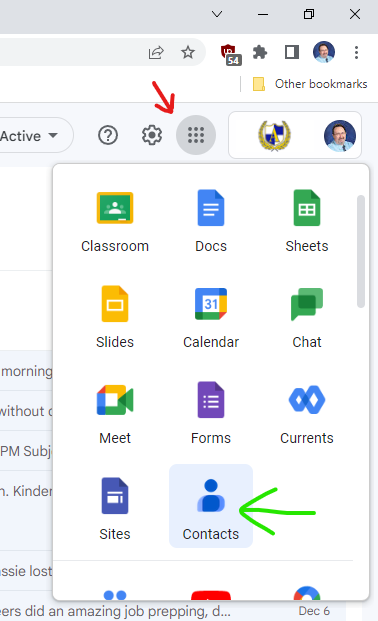
In Gmail, start by clicking the "waffle" button (red arrow) and then clicking on contacts (green arrow)
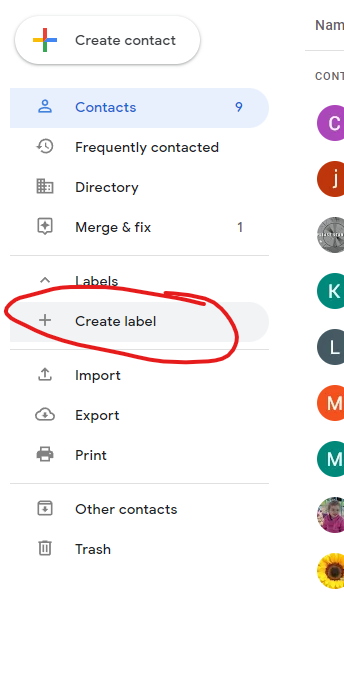
Start by creating a label that describes the group of people you are including.
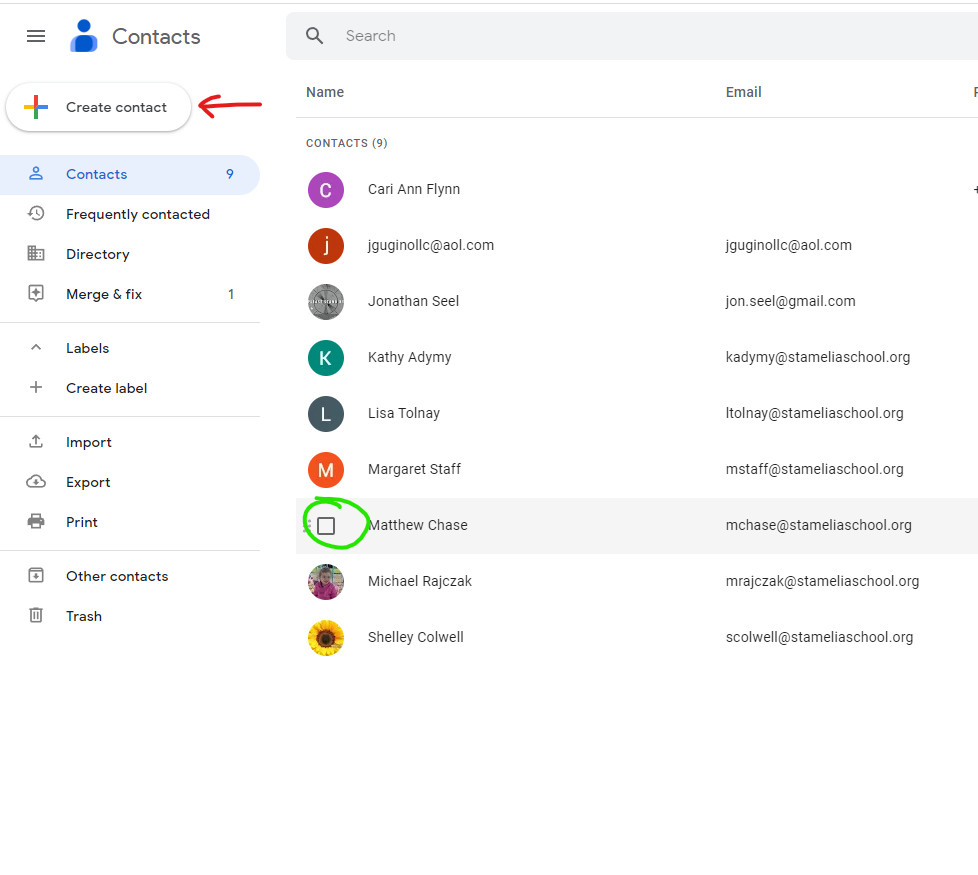
Once the label is created you can start applying it to your contacts. If you need to add contacts first click "Create contact" (red arrow)
Select everyone you would like to apply the label to by click in the check box that appears next to their name when you hover your mouse pointer over them. (green circle)
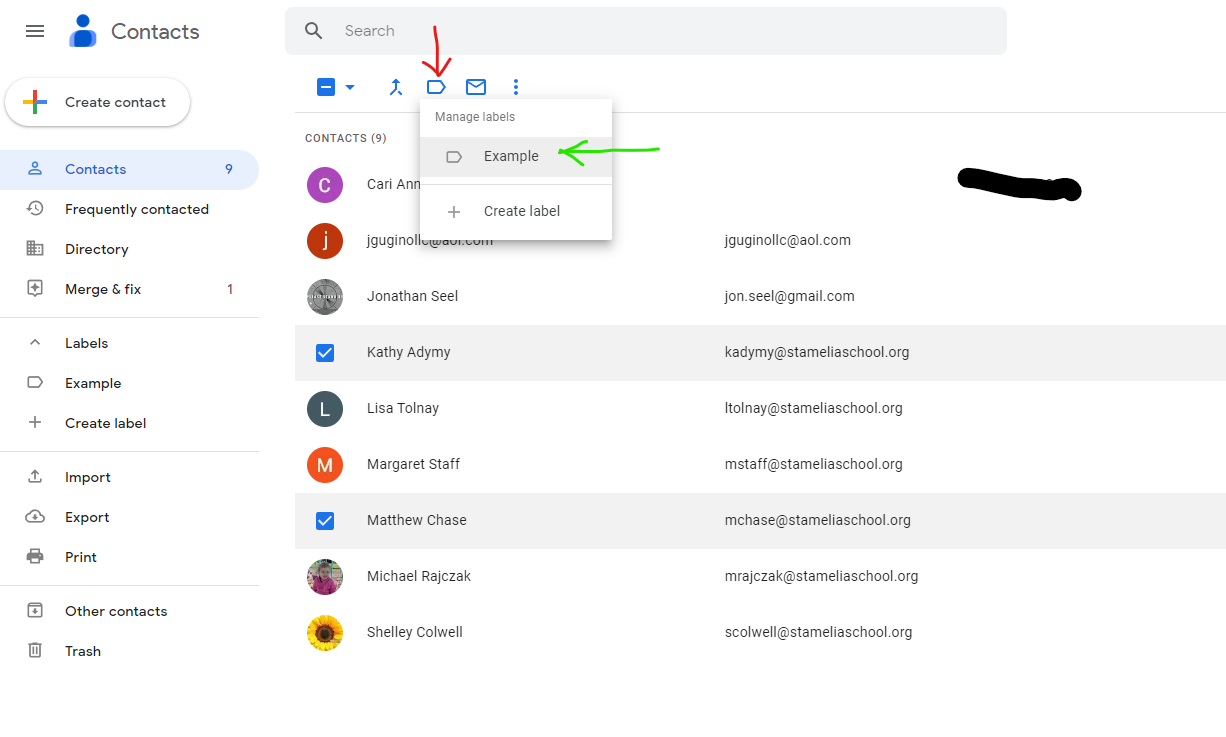
A tool bar will will appear at the top. Click on the manage labels button (red arrow) and then select the the label you would like to apply to the group of people you have selected.(green arrow) Then click Apply
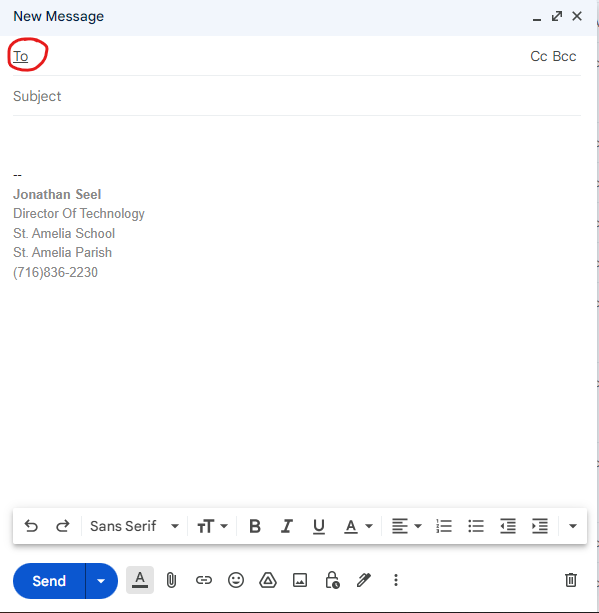
Once you have the label created and populated. Return to Gmail. Start a new email (compose) and click To. (red circle)
In the window that opens, click where it says my contacts (red arrow) and select the label you just created (blue circle)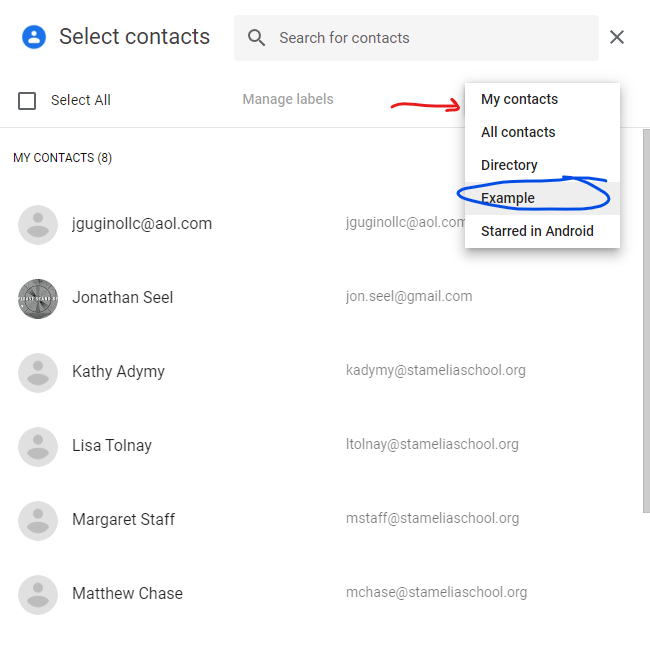
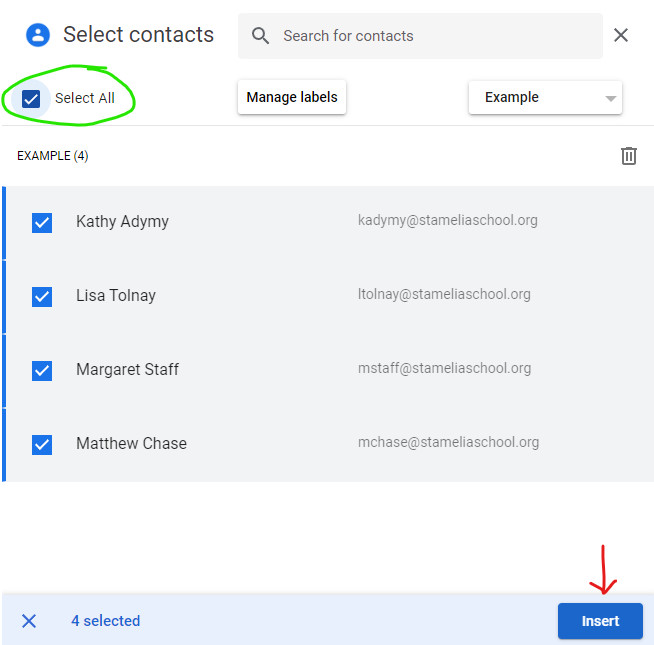
If you are sending to everyone with that label click "Select All" (green circle) and then click the Insert button (red arrow)
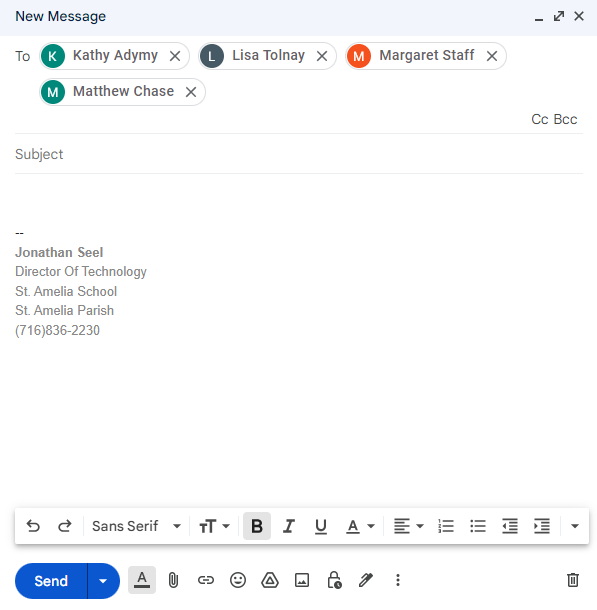
This will insert everyone into the "To" field as shown below
If you would like to Bcc everyone in the group (in order to not show everyone's email to each other and to prevent "Reply All" issues, you can click on "Bcc" initially when starting the email instead of "To"