
To add a school printer to your computer or laptop:
1) Press the windows key on your keyboard (lower left) and the "r" key at the same time. This should bring up a small dialog box.
2) Type \\stc-server1 in the box and click on "OK"
3) Find the printer you want to add and double click on its icon.
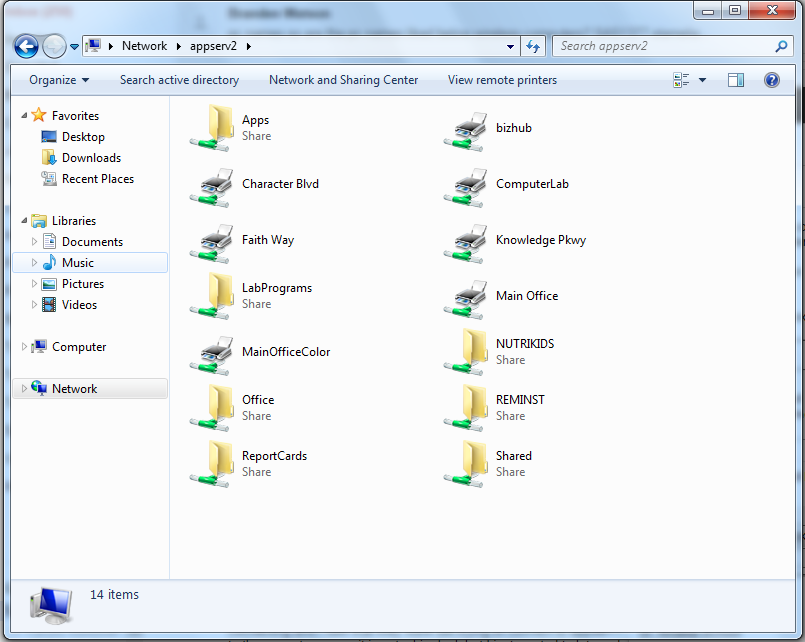
4) The installation should then start on its own. Once complete a window for that printer’s queue will pop up. This means installation was successful.
If these steps do not work on your computer, please fill out a ticket for further assistance.